See the Countertop in the Customer’s Kitchen Before You Cut It
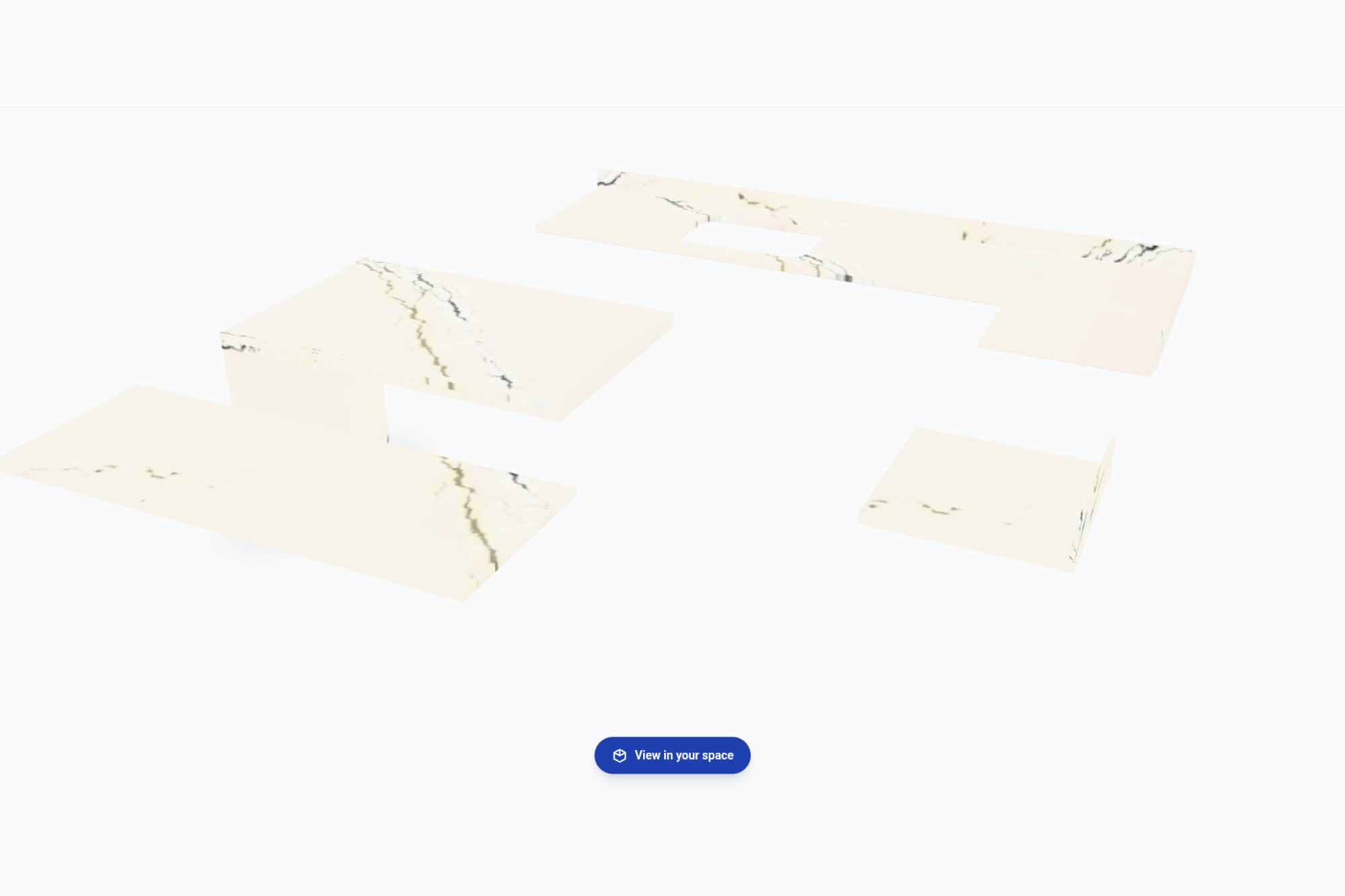
Every fabricator has heard it after the install: “I thought the island would be smaller.” Or the opposite, the waterfall leg that looked fine on paper and now feels like a wall. The drawing was right. The customer just could not picture it in their own kitchen.
Stone Project now closes that gap. The 3D preview of any drawing can be opened in augmented reality: the pieces, with the stone you picked, placed in the real room at real size through the camera of a phone or tablet. The shop can do it on site, and the customer can do it at home from a link.
What you see
The AR model is built from the same 3D view you already use in the drawing editor. It keeps the shape of every piece, seams, edge profiles, sink and cooktop cutouts, backsplashes and waterfalls, and it wraps each piece in the slab photo mapped the way the layout placed it. Point the phone at the floor, tap, and the countertop appears at counter height, in the pattern the customer will actually get.
There are no cabinets and no room around the stone, on purpose. The model is the stone, floating where the top of the cabinets will be, so the eye reads size, overhang, the height of a waterfall and the movement of the veins against the real walls and floor.
How the shop uses it
- Open the drawing and go to the Material & Color step.
- Switch the preview to 3D and tap the cube icon, View in your space (AR).
- Stone Project prepares the model and saves it in the job’s Files as AR model. There is one per job; exporting again replaces it, so the model always matches the current drawing.
- Tap Open on a phone or tablet, then View in your space. iPhone and iPad open it in Quick Look, Android in Scene Viewer. On a computer the page shows the model in 3D and a QR code you scan to continue on a phone.
Standing in the customer’s kitchen with the template done, this is a two-minute step before anyone signs anything.
How the customer uses it
The same sheet gives you a link that works without logging in for seven days, ready to send by text or email. If you turn on Visible to the client in the portal, the model also shows up on the quote and approval pages as See it in your space, and in the job files of the client portal. The customer taps the button, points the phone at their floor and walks around the stone.
Nothing is downloaded or installed. It is a web page, and the model stays private to that job.
Where it fits with the photoreal render
The photoreal render shows the finished installation as a photograph, with cabinets, walls and light the AI makes up around your stone. AR shows the real room with only the stone in it, at true scale. Use the render to sell the look and AR to settle size, layout and pattern. The two come from the same 3D view, so they always agree with the drawing.
What to know
- AR needs a phone or tablet with ARKit (iPhone and iPad) or ARCore (most recent Android devices). Older devices still open the 3D view.
- The model uses the slab photos attached to the layout. A layout without photos still exports, in the color of the material.
- Big slab photos are reduced for the phone, so the model loads in a few seconds on a normal connection.
- The link expires after seven days. Export again or open the job to get a fresh one.
AR is live today in the web app. The iOS and Android apps get the button in their next update.
If you already draw and quote in Stone Project, there is nothing to set up. Open a job, switch the preview to 3D, and show the customer their countertop in their kitchen.